Follow the steps below to activate your SFBU OpenAI (ChatGPT) workspace access.
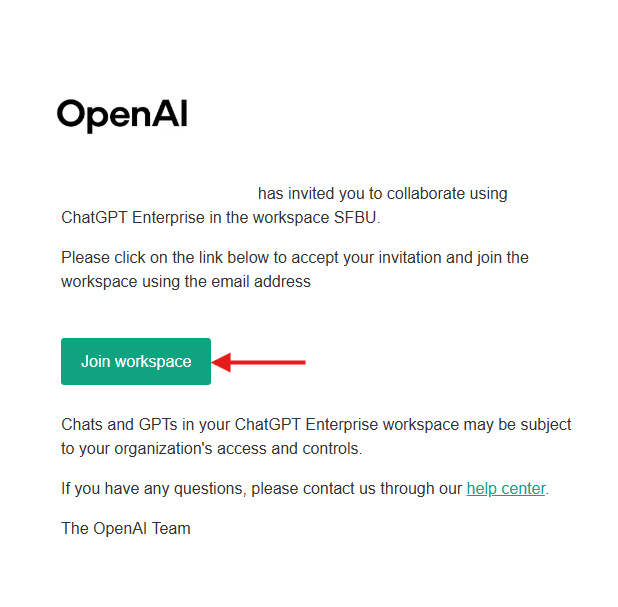
Step 1: Locate the Invitation Email
Check your SFBU email inbox for a message from OpenAI sent from noreply@tm.openai.com.
Tip: If you do not see the email, please check your Spam or Junk folder.
Step 2: Join the Workspace
Open the email and click Join Workspace to begin the activation process.
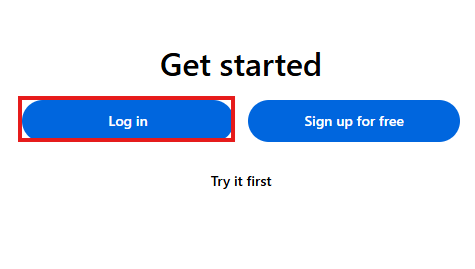
Step 3: Log In
You will be redirected to the OpenAI login page. Click Log In.
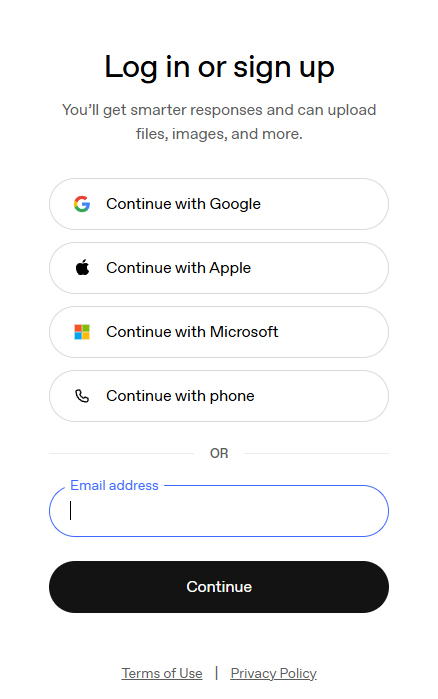
Step 4: Sign In with Your SFBU Google Account
Select Continue with Google, then sign in using your SFBU email account.
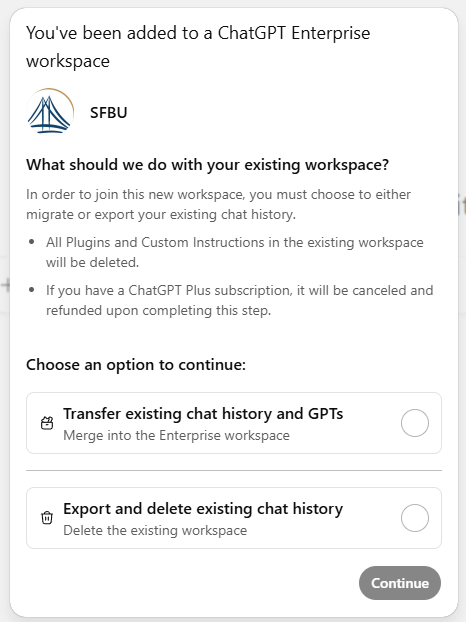
Step 5: Choose How to Handle Existing Chat History
If you already have a ChatGPT account, you will be asked how to manage any existing chat history and custom GPTs:
Transfer existing chat history and GPTs, or
Export and delete existing chat history
Please select the option that best aligns with your personal preference.
You are now ready to begin using ChatGPT through the SFBU OpenAI workspace.
Was this article helpful?
That’s Great!
Thank you for your feedback
Sorry! We couldn't be helpful
Thank you for your feedback
Feedback sent
We appreciate your effort and will try to fix the article