Purpose:
This guide provides SFBU staff/student/faculty with step-by-step instructions on how access the SFBU-ChatGPT account
Using Google Apps
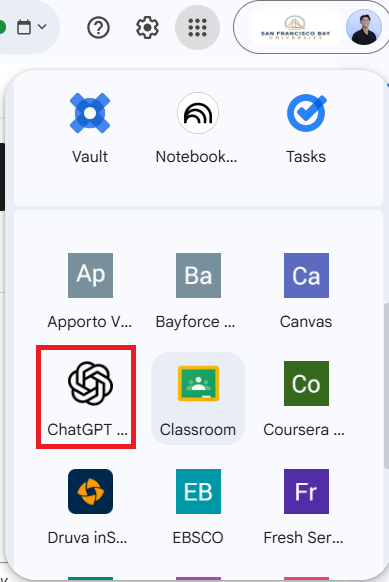
Open Google Apps: Log into your SFBU email and click the Google Apps icon (the 3x3 grid/waffle icon) in the top-right corner.
Find ChatGPT: Scroll down and select the ChatGPT Edu icon.
Choose Your Account: When prompted by Google, select your official @sfbu.edu email address.
Launch: You will be automatically redirected to the secure SFBU ChatGPT workspace.
Encounter issues when accessing ChatGPT?
If you see an error message like "No Accessible Workspaces" or are stuck on a personal account, please try the following:
Check our Troubleshooting Guide: Possible solutions for ChatGPT Access Errors
Verify your Email: Ensure you are not accidentally signed into a personal
@gmail.comaccount in the same browser.
Still Need Help?
If the steps above do not resolve the issue, please contact the IT Help Desk:
Email: askit@sfbu.edu
Subject: ChatGPT Access Support
Was this article helpful?
That’s Great!
Thank you for your feedback
Sorry! We couldn't be helpful
Thank you for your feedback
Feedback sent
We appreciate your effort and will try to fix the article