Purpose: To provide instructions for accessing the AskIT Helpdesk Virtual Assistant in ChatGPT.
Method 1: Access via Email (Recommended)
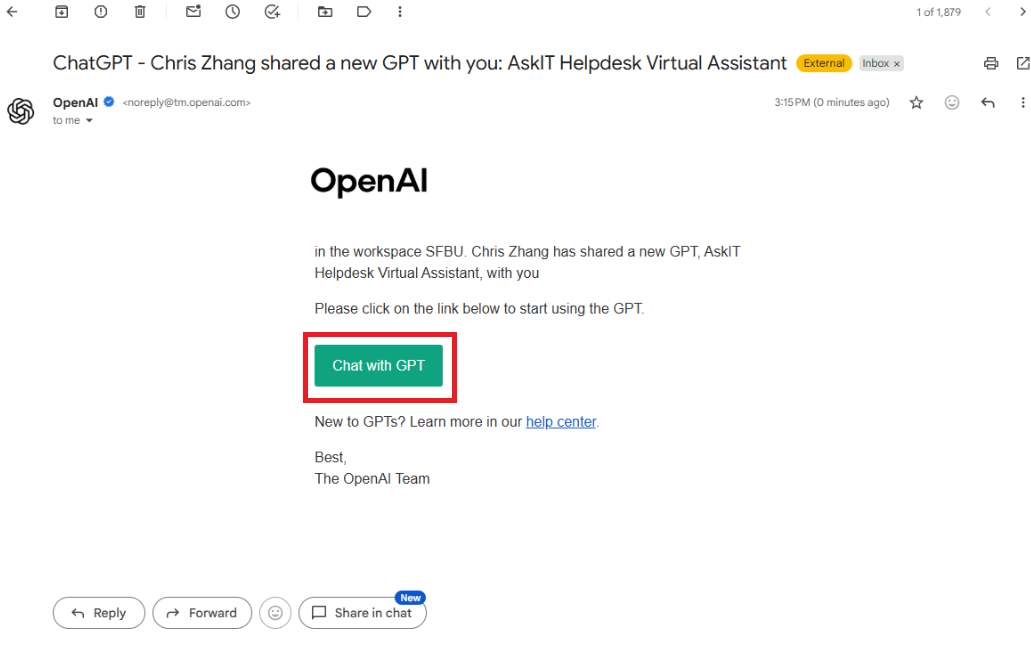
Open the invitation email
Look for an email from OpenAI/ChatGPT indicating a GPT has been shared with you.
The subject line may look like:
“ChatGPT - Chris Zhang shared a new GPT with you: AskIT Helpdesk Virtual Assistant”
Click “Chat with GPT”
This will open the Virtual Assistant in ChatGPT.
The assistant will automatically be added to your GPTs list for future use.
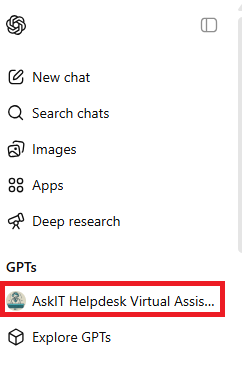
Success Check:
Confirm that AskIT Helpdesk Virtual Assistant appears in your GPTs list on the left-hand panel.
Method 2: Access via GPTs Directory (If Not Visible)
If the Virtual Assistant does not appear after using the email link:
Open ChatGPT.
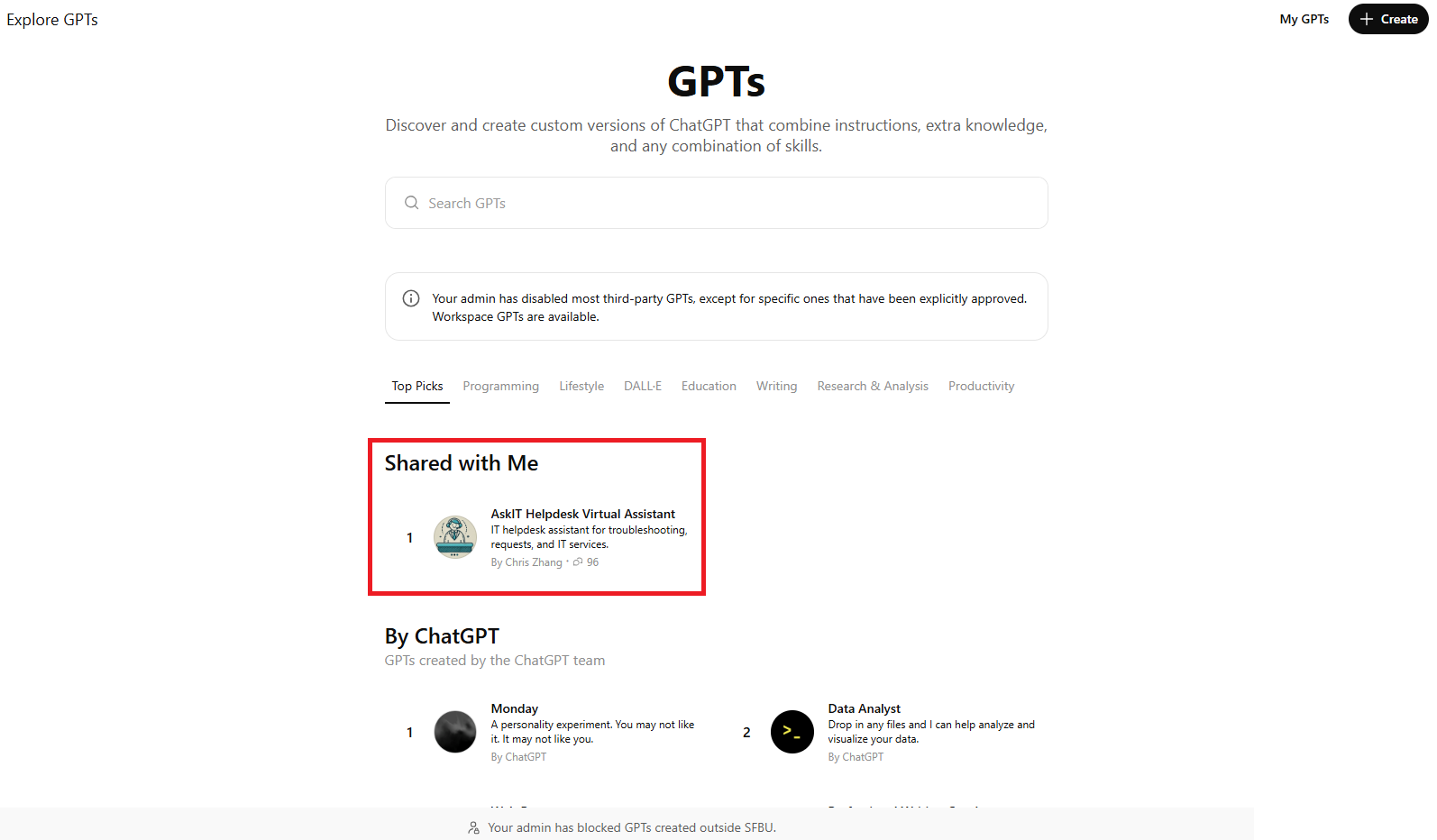
In the left-hand panel, click “Explore GPTs.”
Go to the “Shared with me” section.
Locate and select AskIT Helpdesk Virtual Assistant.
If you have trouble accessing the Virtual Assistant, please contact AskIT@sfbu.edu for support.
Was this article helpful?
That’s Great!
Thank you for your feedback
Sorry! We couldn't be helpful
Thank you for your feedback
Feedback sent
We appreciate your effort and will try to fix the article